Paycor provides payroll and human resources software used by employers. Employees can access the functions their organization enables, including available pay statements and tax documents. Start with the employer’s verified instructions or Paycor’s official sign-in route.
Your employer authorizes employee access, assigns permissions, and manages the payroll information associated with your employment. Payroll or human resources can investigate missing statements, incorrect amounts, and access tied to the wrong employee record.
What Payroll and HR Features Does Paycor Provide?
Paycor’s product information describes payroll processing alongside related HR, workforce, and employee-service functions. The features visible to one employee depend on the employer’s purchased services and access settings.
| Function | Employee or employer use | Important boundary |
|---|---|---|
| Payroll | Process pay and maintain payroll records. | The employer controls payroll decisions and submitted information. |
| Employee self-service | Access enabled personal and pay information. | Some changes require administrator permission. |
| Time and attendance | Record or review time when the module is used. | Company rules determine approval and correction procedures. |
| Tax documents | Retrieve available annual statements. | Availability depends on year-end processing and delivery settings. |
| HR and benefits | Use enabled employment and benefit functions. | Not every organization enables every advertised feature. |
A marketing feature list describes possible capabilities. The employee’s actual account shows the organization’s configuration. Ask the company administrator about an absent feature rather than assuming the account is defective.
How Do You Register for a Paycor Employee Login?
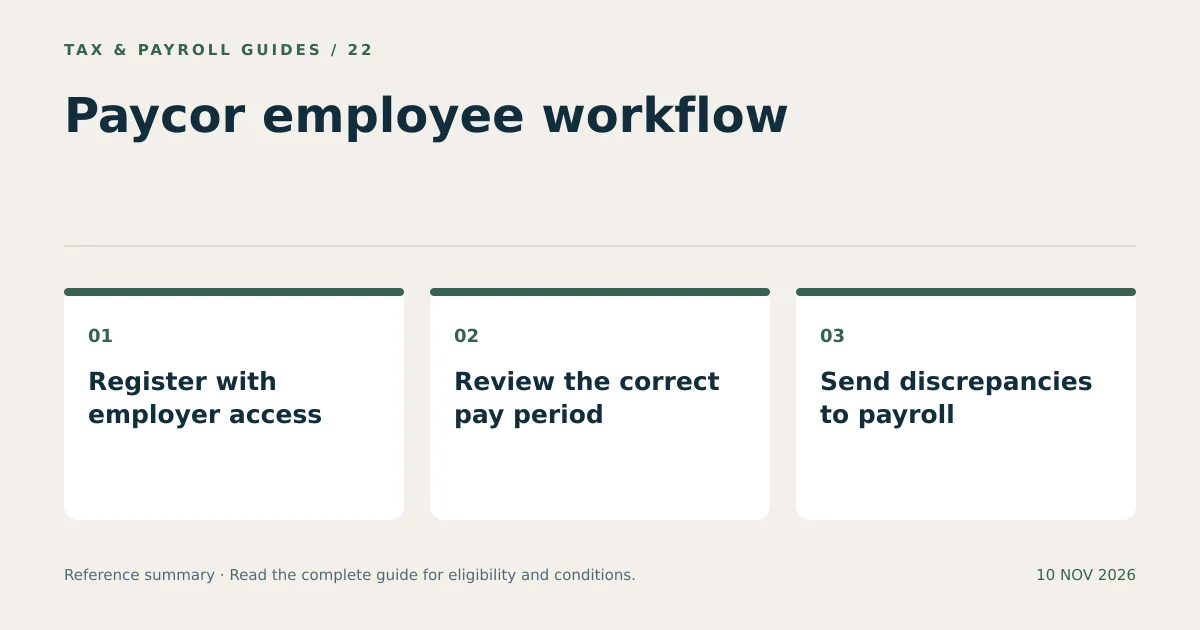
Register using the invitation or access instructions supplied by your employer. Paycor’s support guidance explains that a company administrator first creates the employee record and grants access.
- Confirm the employer record. Ask the administrator whether registration has been enabled.
- Locate the invitation. Use the verified email invitation or employer-provided registration route.
- Follow the applicable process. New-hire onboarding and direct registration can use different instructions.
- Verify the required details. Enter information matching the employer’s record within the official flow.
- Set account credentials. Complete the security and verification steps shown.
- Check access. Confirm the employer and employee information after sign-in.
A mismatch can arise from an outdated email address, a name difference, or a record that is not ready. Ask the administrator to check the underlying record. Repeatedly changing answers to pass verification can create further inconsistencies.
Where Do You Find the Official Paycor Login?
Open the official Paycor website and use its sign-in option, or use the link supplied through your employer’s established system. Confirm the destination before entering account details.
For mobile access, follow the employer’s guidance and verify the application publisher before installing. A similar app name or logo does not establish that a listing is official. Complete verification inside the legitimate application, not through a message from an unknown person.
Some workplaces provide a company portal or a specific onboarding link. Keep that instruction separate from generic online guidance. The employer’s configured route is the relevant one for that account.
What Do You Do When Paycor Login Fails?
Use the official account-recovery option for a forgotten username or password. Contact the employer’s administrator when recovery details are outdated or access has not been granted.
Paycor’s support page provides password and username recovery guidance. The practical first step is identifying the failure: an unknown username, an incorrect password, a verification problem, or a valid account without the expected employer record.
Record the error text and the step where it appears. A useful support request states, for example, “The verification message goes to an old phone number,” instead of only “The website is broken.” Do not include the password, a full Social Security number, or a verification code in that request.
Try an updated browser when a page does not load correctly. Avoid treating an interface problem as proof that payroll information has disappeared. Your employer can confirm both the account record and the available documents.
How Do You Review Pay Statements and Tax Documents in Paycor?
Sign in and open the available payroll or tax-document area. Choose the intended pay date or tax year, then save the complete document when a download option is provided.
A pay statement explains a particular payroll payment. A W-2 summarizes annual wages and tax information for a tax year. They serve different purposes and do not necessarily display identical wage categories.
For a hypothetical employee paid every two weeks, the final December pay statement contains year-to-date information. That record can help investigate a discrepancy, but the annual W-2 remains a separate employer-issued statement. Confirm the tax year printed on it before entering its information into tax software.
Ask the employer when annual forms become available and how paperless elections affect delivery. A missing online form can reflect timing, configuration, or access. It does not establish that the employer has no reporting obligation.
Can Employees Change Direct Deposit or Withholding Information in Paycor?
Employees can change information only through the functions and permissions their employer enables. Paycor’s support guidance specifically notes that direct-deposit editing requires employer authorization.
Before making a financial change, verify the account details from a reliable bank record. Confirm the requested effective date and any payroll cutoff with the employer. A saved request does not necessarily affect a payroll run that has already been processed.
Review the next relevant statement after an authorized change. Report unexpected results through payroll. Do not send bank-account details in an unverified email simply because a message claims to come from Paycor support.
Who Resolves a Paycor Payroll Discrepancy?
The employer’s payroll or HR administrator is the first contact for incorrect hours, wages, deductions, personal details, or missing employer documents. Identify the specific record that needs investigation.
- State the pay date or tax year.
- Identify the line or field in question.
- Explain the expected amount or information.
- Provide supporting records through the approved secure channel.
- Keep the response and any corrected document.
For example, a question about eight missing work hours requires a time-record review. A failed password reset requires an account-access review. Separating those requests helps the employer route them correctly. Paycor payroll access is most useful when the account, employer, and requested record are identified precisely.
What Else Do Readers Ask About Paycor?
Can I Register for Paycor Without My Employer?
Employee access depends on an employer-created record and authorized registration. Ask your employer for the appropriate invitation or access instructions.
Why Is a Feature Missing from My Paycor Account?
Your employer may not use that module or may not have granted your role access. Ask the company administrator to confirm the configuration.
Can a Former Employee Still Obtain a Paycor W-2?
Contact the former employer for continued access or a replacement copy. Do not assume that an active login or a particular year remains available after employment ends.